Setting Up Firebase Authentication
Overview
This section walks you through enabling Firebase Authentication in the Firebase Console, creating the src/firebaseConfig.js, src/authentication.js, and src/login.js module files, and building a single login.html page with toggling login and sign-up views.
The goal of this page is to allow users to create accounts with a username and email address, sign in with email and password, and be redirected to the login.html page when they visit a protected page without being signed in.
Pre-requisite steps
Make sure you have completed Task 1: Setting Up Firebase
and Task 2: Setting Up Cloud Firestore Database
before starting this section. Your project must already have Firebase installed
as a Node package and have a working src/firebaseConfig.js skeleton.
Firebase version and configuration environment
Your COMP 1800 project uses the Firebase v9 modular SDK bundled through Vite. All Firebase functions are imported using ES module import statements rather than loaded via <script> tags.
Enabling Email/Password Authentication
Before writing any code, you must enable the Email/Password sign-in method inside the Firebase Console.
-
Open the Firebase Console and click on your project.
-
Click [Search] in the left sidebar, then search for [Authentication].
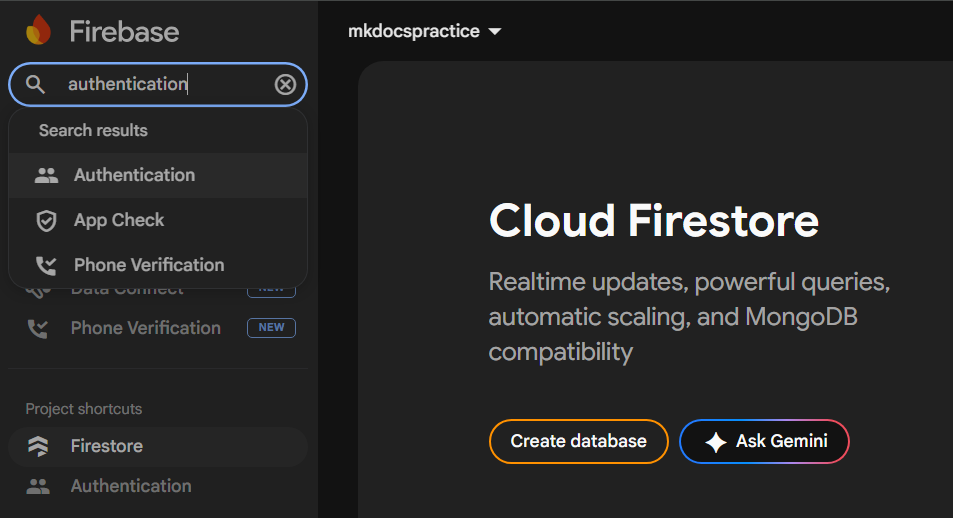 Figure 1: The authentication section as seen from the search bar.
 -
Click [Get started].
-
Click the [Sign-in method] tab.
-
Click [Email/Password] under the "Native providers" section.
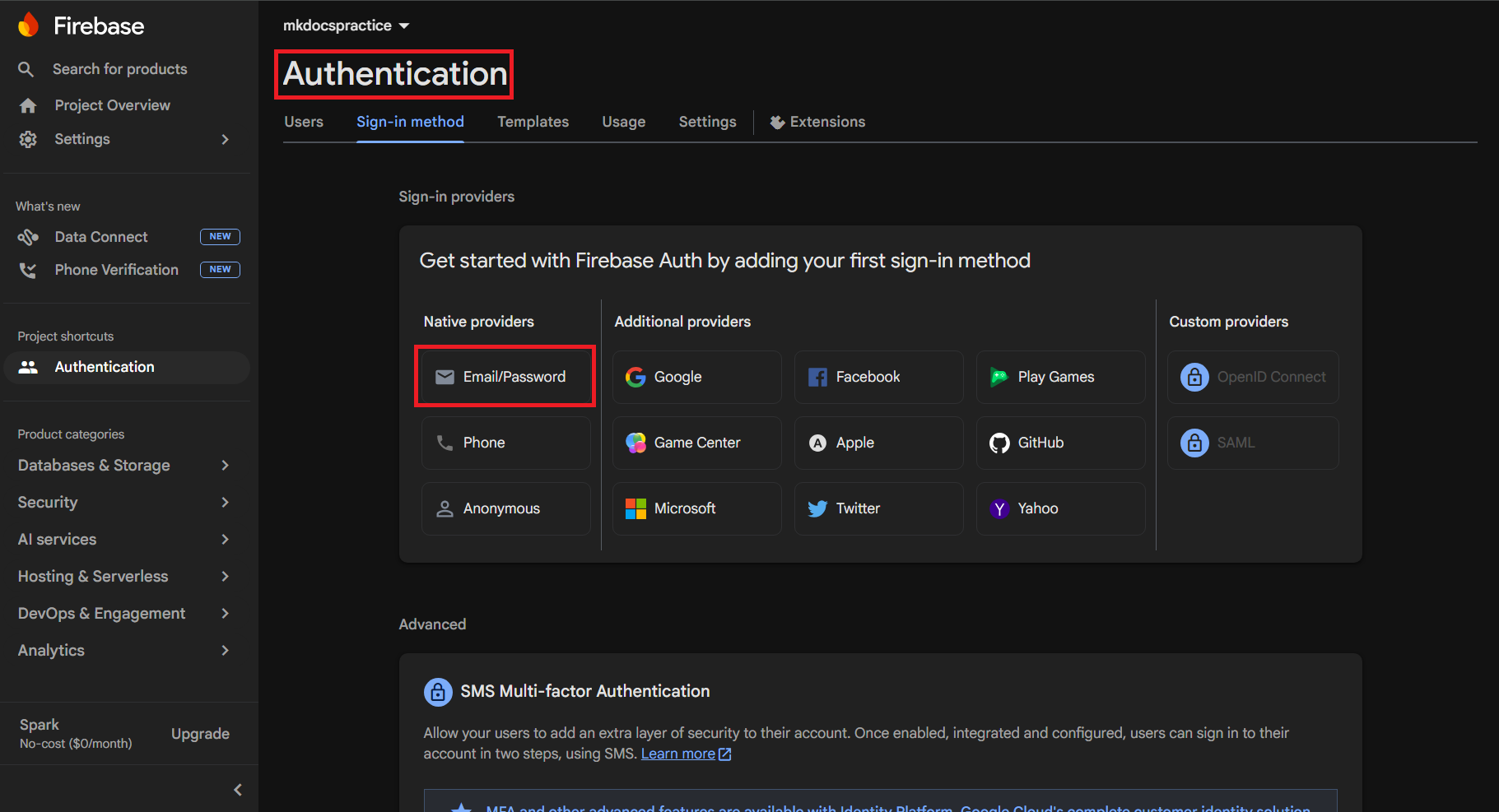 Figure 2: The Email/Password provider in the Sign-in method tab.
 -
Toggle on the first switch labelled "Email/Password".
Warning
Do not enable the second toggle labelled "Email link (passwordless sign-in)." Your COMP 1800 project will use standard password-based login only.
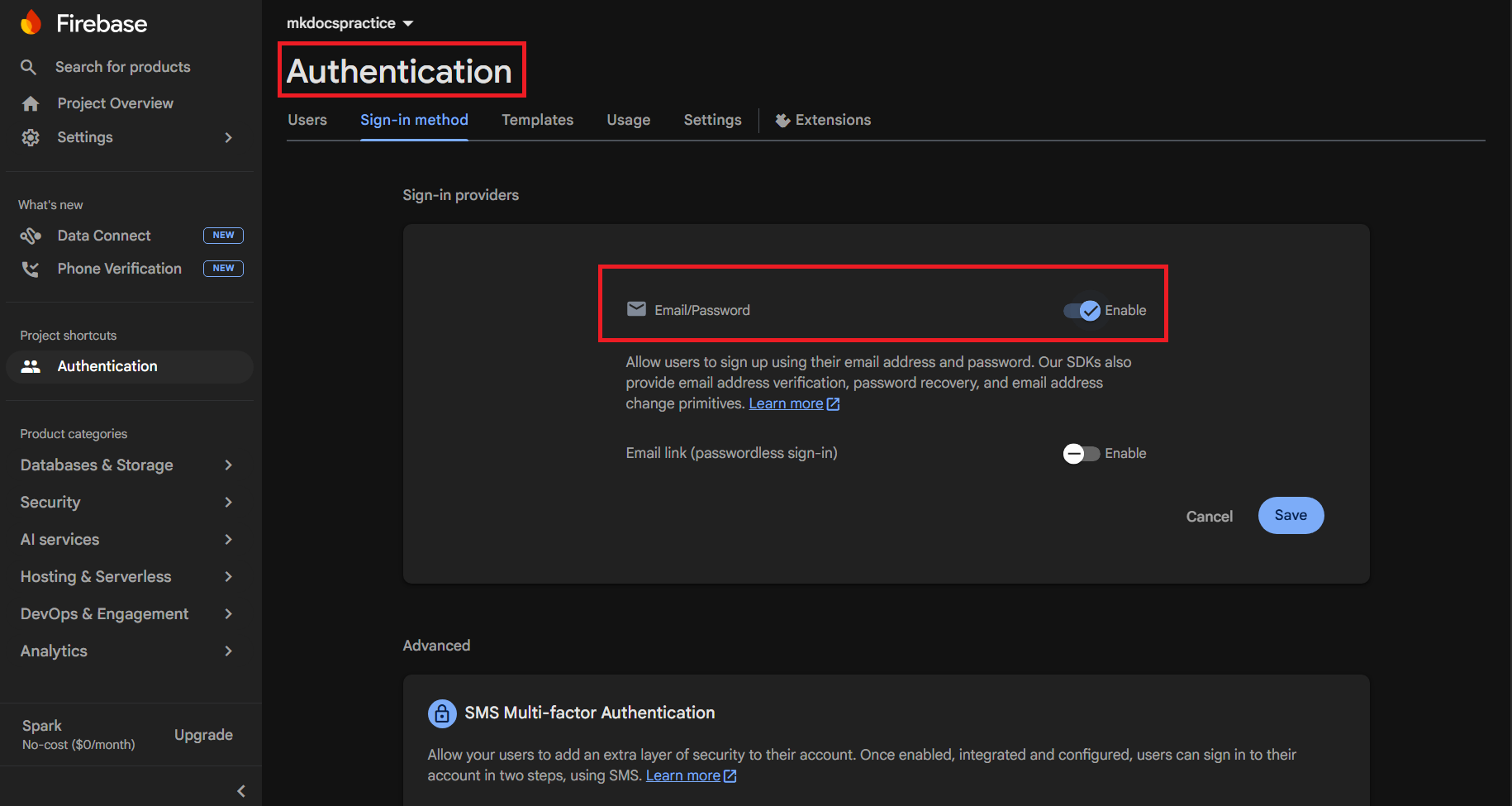 Figure 3: Enabling the Email/Password sign-in method.
 -
Click [Save].
"Email/Password" should appear as an Enabled provider in the list.
Authentication Enabled
Email/Password authentication is now enabled for your Firebase project.
Configuring src/firebaseConfig.js
Your COMP 1800 project initialises Firebase once in src/firebaseConfig.js and exports the auth and db instances. Every other module imports from this file rather than calling initializeApp again.
-
Open
src/firebaseConfig.jsin VS Code. -
Replace its contents with the following, pasting your own project values in place of the placeholders:
// src/firebaseConfig.js
import { initializeApp } from "firebase/app";
import { getFirestore } from "firebase/firestore";
import { getAuth } from "firebase/auth";

const firebaseConfig = {
    apiKey: "YOUR_API_KEY",
    authDomain: "YOUR_PROJECT_ID.firebaseapp.com",
    projectId: "YOUR_PROJECT_ID",
    storageBucket: "YOUR_PROJECT_ID.appspot.com",
    messagingSenderId: "YOUR_SENDER_ID",
    appId: "YOUR_APP_ID"
};

const app = initializeApp(firebaseConfig);

export const db   = getFirestore(app);
export const auth = getAuth(app);
Replace Placeholders
Replace every
YOUR_...placeholder with the actual values from your Firebase project. Find these in the Firebase Console under [Project Settings] → [Your apps] → [SDK setup and configuration]. -
Save
src/firebaseConfig.js.
Creating src/authentication.js
src/authentication.js exports a single reusable function, requireLogin(), that any page can call to redirect unauthenticated visitors to login.html.
-
Create the file
src/authentication.js. -
Add the following code to the
src/authentication.jsfile and save the file:// src/authentication.js import { onAuthStateChanged } from "firebase/auth"; import { auth } from "./firebaseConfig.js"; /** * Redirects the user to login.html if they are not signed in. * Import and call this at the top of any protected page script. */ export function requireLogin() { onAuthStateChanged(auth, (user) => { if (!user) { window.location.href = "/login.html"; } }); } -
To protect any page, import and call
requireLogin()at the top of that page's script. For example, insrc/main.js:
Creating src/login.js
src/login.js handles both the sign-up and login form submissions and controls which form is visible on login.html.
-
Create the file
src/login.js. -
Add the following code:
// src/login.js import { createUserWithEmailAndPassword, signInWithEmailAndPassword } from "firebase/auth"; import { doc, setDoc } from "firebase/firestore"; import { auth, db } from "./firebaseConfig.js"; // --- Toggle between login and sign-up views --- const loginView = document.getElementById("loginView"); const signupView = document.getElementById("signupView"); document.getElementById("toSignup").addEventListener("click", (e) => { e.preventDefault(); loginView.classList.add("d-none"); signupView.classList.remove("d-none"); }); document.getElementById("toLogin").addEventListener("click", (e) => { e.preventDefault(); signupView.classList.add("d-none"); loginView.classList.remove("d-none"); }); // --- Sign-up form --- document.getElementById("signupForm").addEventListener("submit", async (e) => { e.preventDefault(); const username = document.getElementById("signupName").value.trim(); const email = document.getElementById("signupEmail").value.trim(); const password = document.getElementById("signupPassword").value; const confirm = document.getElementById("signupConfirmPassword").value; if (password !== confirm) { alert("Passwords do not match."); return; } try { const credential = await createUserWithEmailAndPassword(auth, email, password); // Store the username in the Firestore users collection await setDoc(doc(db, "users", credential.user.uid), { username: username, email: email }); window.location.href = "/index.html"; } catch (error) { alert(error.message); } }); // --- Login form --- document.getElementById("loginForm").addEventListener("submit", async (e) => { e.preventDefault(); const email = document.getElementById("loginEmail").value.trim(); const password = document.getElementById("loginPassword").value; try { await signInWithEmailAndPassword(auth, email, password); window.location.href = "/index.html"; } catch (error) { alert(error.message); } }); -
Save
src/login.js.
Adding Sign-Out to a Page
To let users sign out, add a button and import the Firebase signOut function into that page's script.
-
Add a sign-out button to the chosen HTML page:
-
Open that page's script file and add the following:
-
Save the file.
Verifying the authentication is working
-
Run the Vite development in the command line:
Vite should print a local URL such as http://localhost:5173.
-
Open
http://localhost:5173/login.htmlin Google Chrome. -
Click the [Sign up] link.
The login form hides and the sign-up form appears.
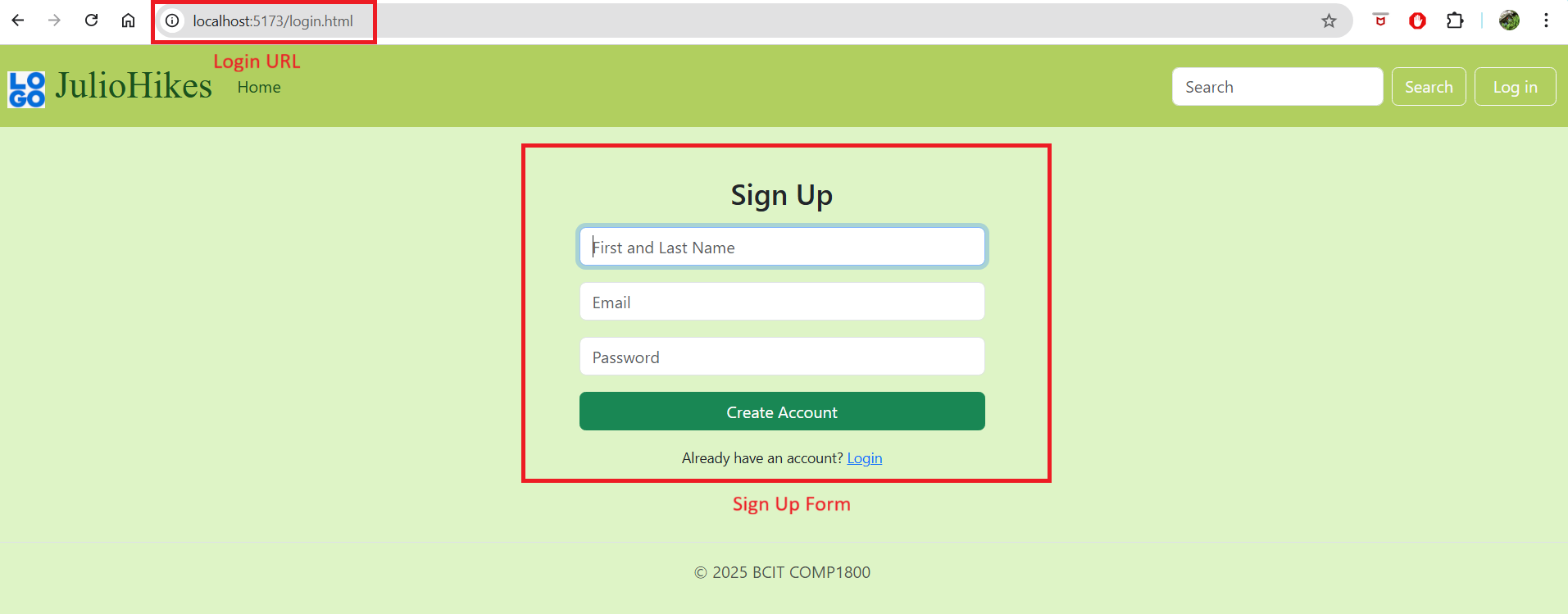 Figure 4: The sign-up view of login.html.
 -
Enter a username, a valid email address, and a password of at least six characters, then click [Sign Up!].
The browser should redirect to
index.html. -
Open the Firebase Console, navigate to [Authentication] → [Users], and confirm your new test user appears in the list.
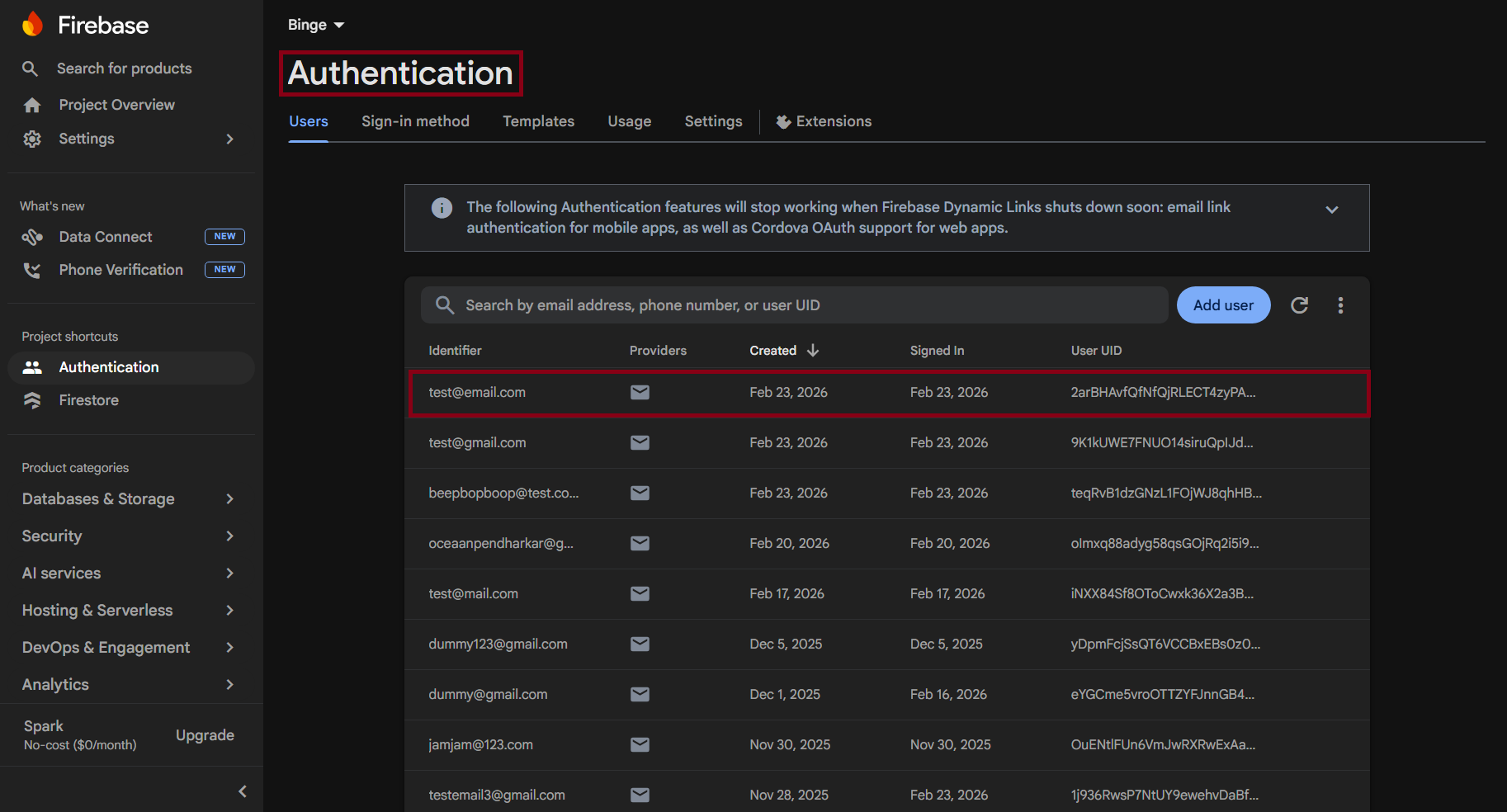 Figure 5: The new user visible in the Firebase Console.
 -
Click [Sign Out], return to
login.html, enter your email and password, and click [Login].Once the user is logged in, the browser should redirect back to
index.html.
Authentication Working
Firebase authentication is now working correctly. Users can create accounts, sign in, and sign out.
Conclusion
In this section, you:
- Enabled Email/Password authentication in the Firebase Console
- Updated
src/firebaseConfig.jsto exportauthanddb - Created
src/authentication.jswith a reusablerequireLogin()function - Created
src/login.jsto handle sign-up and login form submissions - Built a single
login.htmlcontaining both the login and sign-up forms
If users can sign up, appear in the Firebase Console Users list, log in, and sign out, your setup is complete. If you encounter errors, refer to the Troubleshooting page.
Next: Deploying Your Project